Save a Template
To save your template click the Save Changes button in the toolbar at the top of the Template Designer.
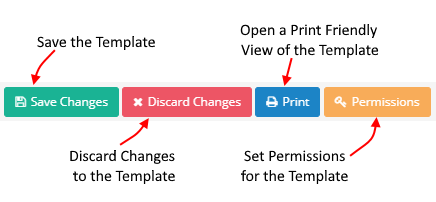
Every save creates a new version of your template automatically and makes your changes available immediately. There is no separate publish step and there is no auto-save — your changes are only stored when you click Save.
What Happens When You Save
New checklists created after the save will always use the latest version of the template.
In-progress checklists that were created from an earlier version of the template are not updated automatically. They continue to run against the version they were started on.
Updating Open Checklists
If there are any open checklists when you save, a dialog will appear asking whether you want to apply your changes to them.
The dialog lists all open checklists derived from the previous version of the template. You can:
- Select individual checklists to update to the latest version, then click Update Selected Checklists.
- Click "Don't Update Checklists" to leave all open checklists on their current version.
Checklists that are not updated will continue to run unchanged against the version they were originally created from.
Only open (incomplete) checklists can be updated. Completed checklists are never affected by template changes.
Version History
Every saved version is retained indefinitely. You can view the full version history, load any previous version, and use it as the basis for a new save. See Template Versioning for details.
Related Pages
- Template Versioning — what saving creates, and how to get back.
- Create a Checklist — using the saved template.
- Template Permissions — deciding who else can save changes.