Tagging Templates
Template tags are the most powerful and time-saving way to use tags in CheckFlow. Rather than manually tagging each checklist after it is created, you configure tags once on the template and every checklist derived from that template is automatically tagged.
There are two types of tags you can configure on a template:
- Template Tags — Applied to the checklist itself when it is created from the template.
- Template Task Tags — Applied to specific tasks within the checklist when it is created from the template.
How Tag Inheritance Works
When a new checklist is created from a template, CheckFlow copies all template tags to the checklist and all template task tags to the corresponding tasks. These inherited tags are fully editable on the checklist — you can add more tags, or remove inherited ones — without affecting the template or any other checklists.
This is particularly useful for high-volume workflows. For example, if you run an Employee Onboarding checklist for every new hire, you can tag the template with Onboarding once. Every onboarding checklist is then automatically tagged, and clicking Onboarding in the Tags Menu instantly shows you all active, completed and upcoming onboarding runs without any manual effort.
Adding Tags to a Template
Template tags are managed through the Template Tags panel in the template settings.
- Open the template you want to tag.
- Click the Settings button in the template toolbar.
- From the sub-menu that appears, click the Tags button.
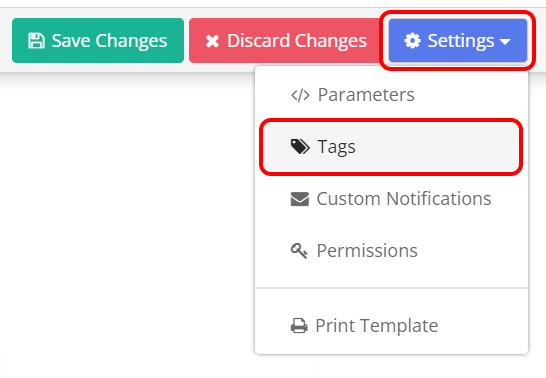
The Tags panel will open. It contains two tabs: Template and Tasks.
Template Tab — Checklist-Level Tags
The Template tab lets you configure tags that will be applied to the checklist itself when it is created from this template.
- Click the Template tab if it is not already selected.
- Locate the Tags text box.
- Start typing the name of the tag you want to add.
- If the tag already exists, select it from the autocomplete dropdown to reuse it.
- If it is a new tag, type the full name and press Tab or click away to create it.
- The tag will appear as a light blue label confirming it has been added.
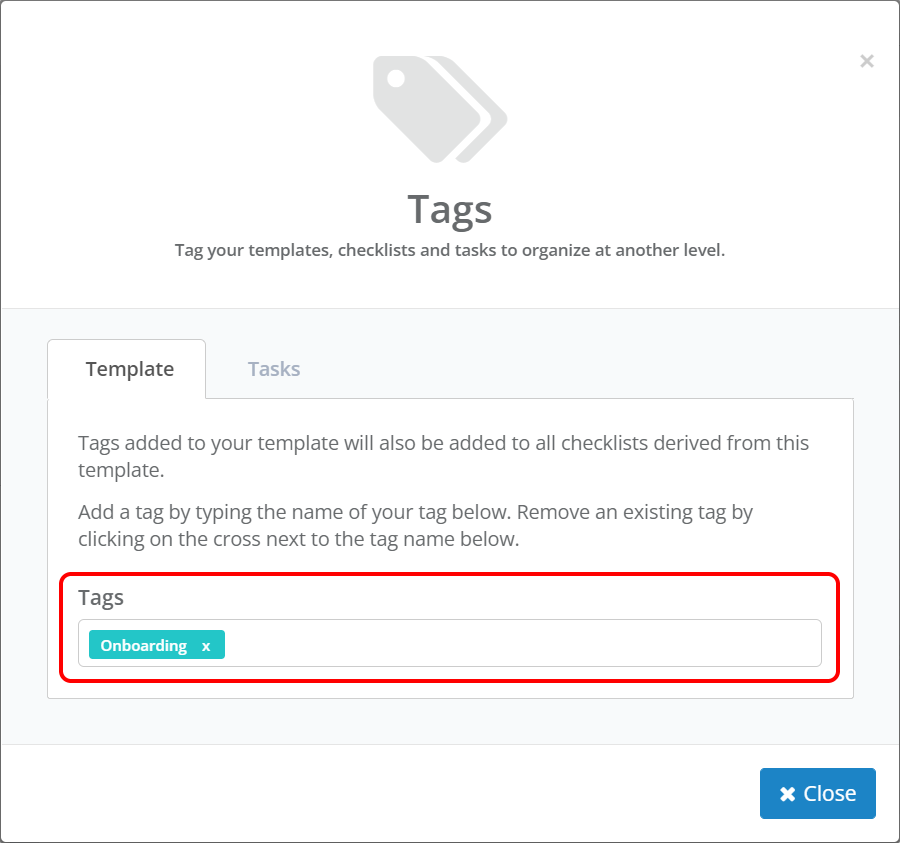
Add as many tags as needed. These tags will be automatically applied to the checklist field on every new checklist created from this template.
Tasks Tab — Task-Level Tags
The Tasks tab lets you configure tags on individual tasks within the template. These are inherited as task tags on the corresponding tasks in every derived checklist.
- Click the Tasks tab.
- A list of all tasks in the template is displayed. Each task has a tag text box on the right.
- Locate the task you want to tag and click its tag text box.
- Start typing the tag name — select from autocomplete or type a new tag and press Tab or click away.
- The tag will appear as a light blue label next to the task.
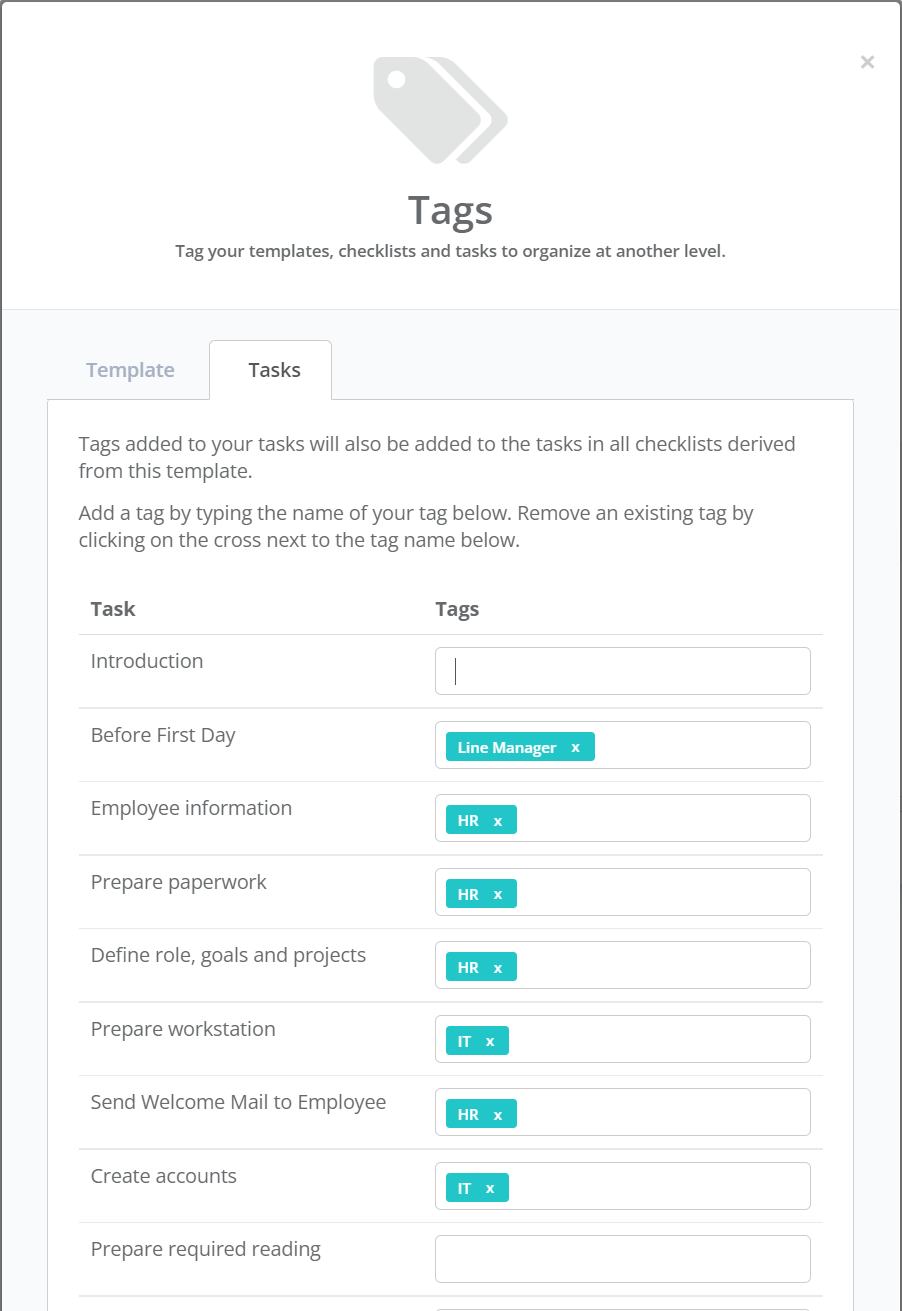
You can add multiple tags to any number of tasks. Each task's tags are inherited independently — a task tagged HR will pass that tag to only that task in derived checklists, not to all tasks.
Removing Tags from a Template
Removing a Template Tag
- Open the template and navigate to Settings → Tags → Template tab.
- Find the tag label you want to remove.
- Click the small × (cross) on the right side of the tag label.
Removing a tag from a template does not remove it from existing checklists that were already created. It only prevents the tag from being added to future checklists.
Removing a Template Task Tag
- Open the template and navigate to Settings → Tags → Tasks tab.
- Find the task and the tag you want to remove.
- Click the small × (cross) on the tag label.
As with template tags, this only affects future checklists. Existing checklist tasks that inherited the tag will keep it.
Updating Tags on a Published Template
If you update the tags on a template after checklists have already been created from it, the existing checklists are not retroactively updated. Only new checklists created after the change will receive the updated tags.
If you need to update tags across existing checklists, you will need to update them individually on each checklist. See Tagging Checklists and Tagging Tasks.
Related Pages
- Applying Tags — tagging a checklist or task by hand, including one that inherited its tags.
- Finding Tagged Items — seeing everything a tag has reached.
- Template Versioning — why a tag change does not reach existing checklists.
- Tags Overview — what tags are and where they apply.