Finding Tagged Items
There are two ways to reach tagged items, and they answer different questions.
| Tags Menu and Tag Page | Tags Filter | |
|---|---|---|
| Shows | Checklists, tasks and library items | Checklists only |
| Lives in | The left navigation sidebar | The Checklist Dashboard |
| Tags at once | One | Several, combined |
| Combines with other filters | No | Yes — status, date and search |
| Best for | Everything associated with one tag | Narrowing the dashboard by tag alongside other criteria |
Use the Tags Menu to see everything a tag touches. Use the Tags Filter when you are already working in the dashboard and want fewer rows.
The Tags Menu
The Tags button appears in the left navigation sidebar as soon as your team has at least one tag. Until then it is not shown.
- Click the Tags button in the left navigation sidebar.
- The team's tags are listed in alphabetical order.
- Click a tag to open its Tag Page.
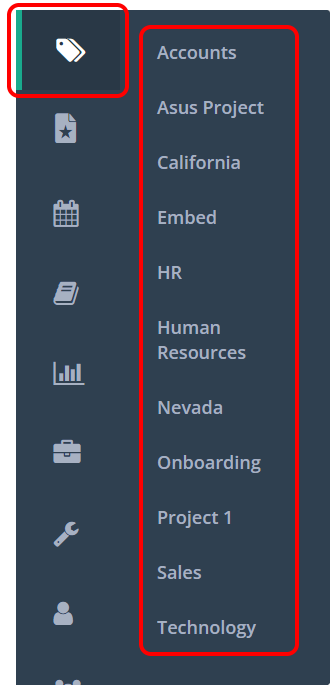
Tags are shared across the whole team — everyone sees the same list. What each person sees behind a tag differs, because the Tag Page only shows items they have permission to view.
The Tag Page
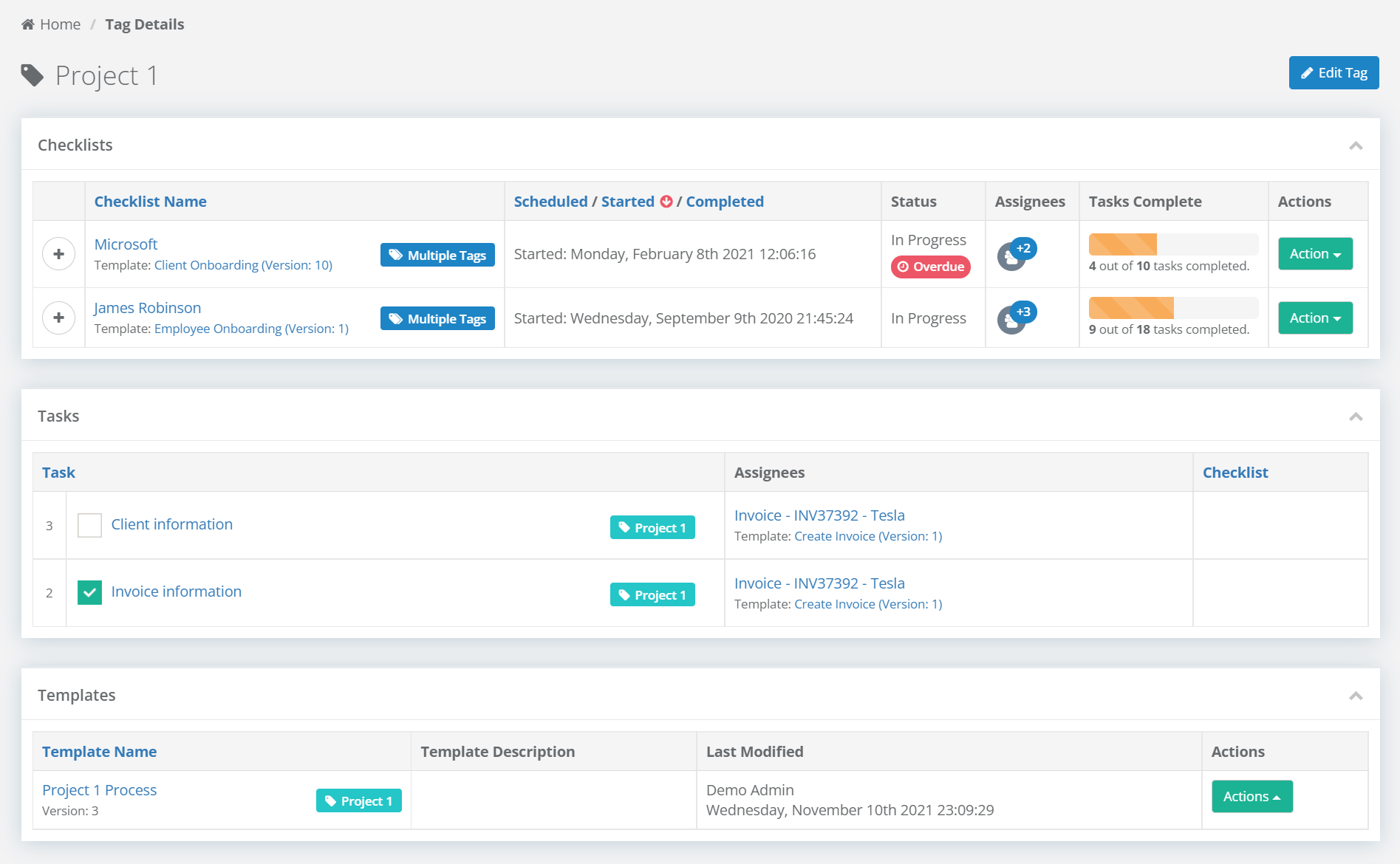
The Tag Page gathers everything carrying one tag. It has up to three sections, and a section only appears if something of that type is tagged.
Checklists
A grid of the tagged checklists you can see, with:
| Column | Shows |
|---|---|
| Checklist Name | Click to open the checklist. |
| Scheduled / Started / Completed | When it was due to start, actually started, and finished. |
| Status | Not Started, In Progress, Overdue or Complete. |
| Assignees | The users and groups assigned. |
| Tasks Complete | A progress bar and a count out of the total. |
Click any column header to sort. The grid paginates when there are many checklists.
Click the + on a checklist row to expand its tasks inline — and you can tick tasks off directly from there without opening the checklist.
Tasks
Every individual tagged task, across all checklists, with its name, the checklist it belongs to, and its due date. Sorted by due date by default, so the most urgent work is at the top. Re-sort by name or checklist if you prefer.
Tagged standalone tasks are listed here too. One attached to a checklist names that checklist in the Checklist column; one that is not leaves the column empty.
Library Items
Tagged templates, articles and files, each showing its type and metadata such as the last modified date.
This section is visible only to users with at least Library.Viewer. Someone without Library access sees the rest of the page as normal, with no library section and no indication that one exists. See Library Roles and Permissions.
Renaming or Deleting from the Tag Page
Administrators see Edit Name and Delete Tag buttons beside the tag name at the top of the page. Both are covered in Managing Tags.
The Tags Filter
- Open the Checklist Dashboard from the left navigation sidebar.
- Click the Tags filter at the top of the page.
- Type to search, or browse the dropdown.
- Select one or more tags.
The grid updates immediately.
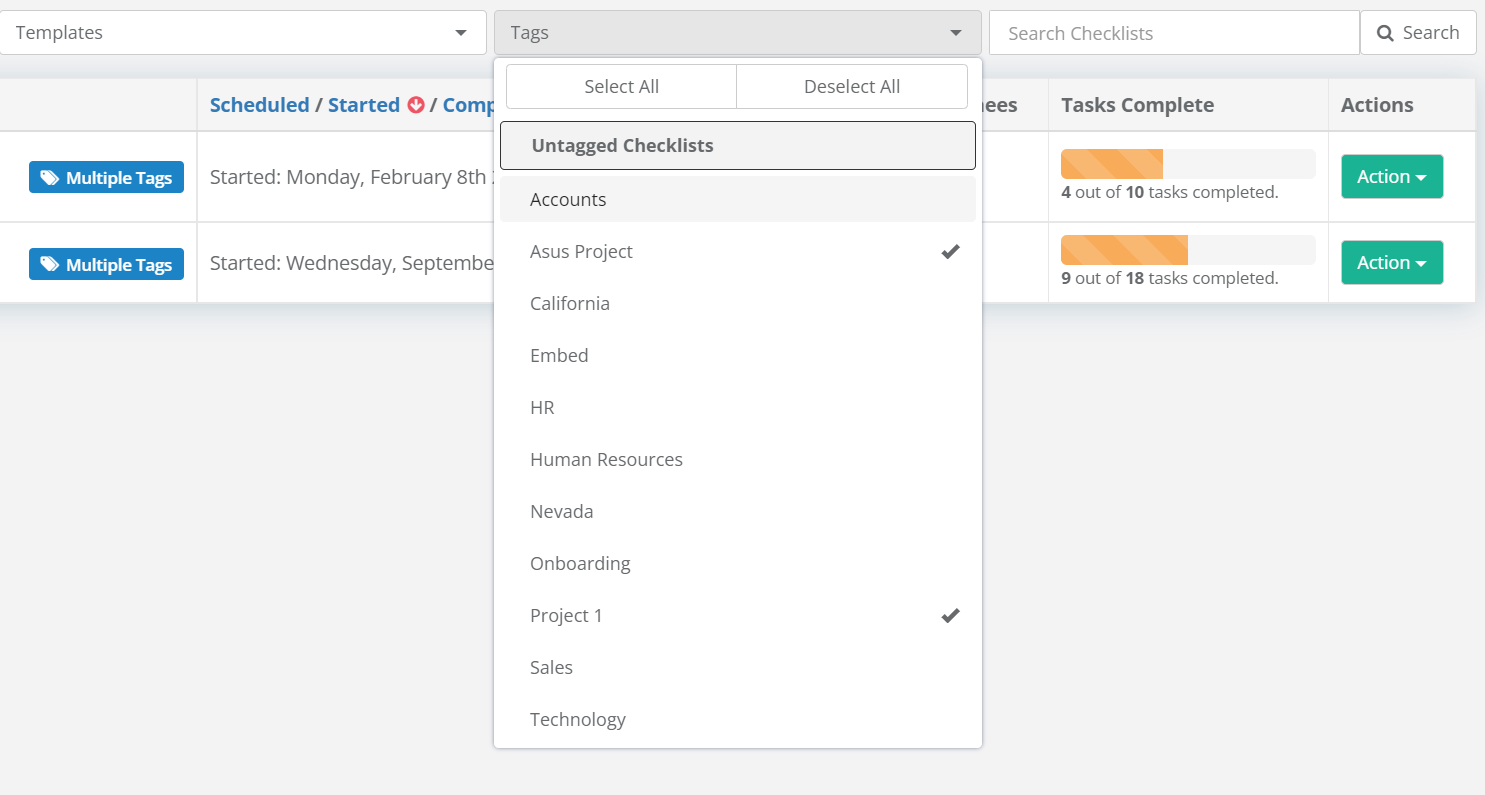
Selecting several tags shows only checklists carrying all of them, not any of them. A checklist tagged HR but not Q1 disappears from an HR + Q1 filter.
To remove a tag from the filter, click the × beside its name. Clearing every tag returns the dashboard to the full list.
If you filter by the same tags regularly, save the view as a Custom Report instead of rebuilding it each time.
When a Tag Is Deleted
Deleting a tag removes it from the Tags Menu immediately, and from every checklist, task and library item it was applied to. Its Tag Page stops existing. Only Administrators can delete a tag — see Managing Tags.
Related Pages
- Applying Tags — putting tags on checklists, tasks and library items.
- Managing Tags — renaming and deleting tags across the team.
- Report Filters — filtering by tag inside a report rather than the dashboard.
- Tags Overview — what tags are and where they apply.