Data Sets Overview
A Data Set is a reusable table of reference data that lives in your Library. It is made up of Fields (the columns) and Records (the rows) — for example a list of clients, offices, products, or engineers.

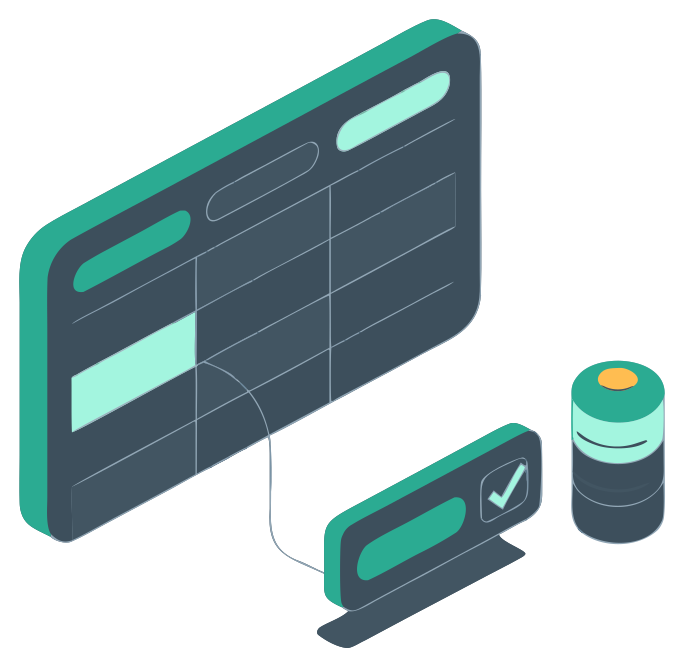
Once a Data Set exists, you can link it to a control in a template. Instead of typing the same list of options into every template by hand, the control reads its options from the Data Set. Update the Data Set once and every template that uses it is up to date.
Why Use Data Sets?
Without Data Sets, a list of options has to be typed into each Dropdown control individually. When the list changes — a new client, a discontinued product, a member of staff leaving — every template containing that list has to be found and edited.
With Data Sets:
- The list is maintained in one place.
- Linked controls always show the current list when a checklist is loaded.
- Each record can carry extra fields (an email address, a region, an account code) that are captured alongside the user's selection and can be pushed into other controls automatically.
- Lists can be filtered per template using Views, so the same Data Set can feed one control with "Active Clients" and another with "Clients in EMEA".
Key Concepts
| Concept | Description |
|---|---|
| Data Set | A named table of reference data. Stored in the Library alongside Templates, Articles and Files. |
| Field | A column. Each field has a name and a type (Text, Number, Date, Email, URL or True/False). |
| Record | A row. Holds one value per field. |
| View | A saved combination of filters, sorts and hidden columns. Every Data Set has an All Records view, and you can add more. |
| Link | The connection between a template control and a Data Set View. See Linking to Controls. |
| Display Field | The field whose value is shown to the person running the checklist (for example the client's Name). |
| System Data Set | A built-in, read-only Data Set supplied by CheckFlow, such as Countries or Currencies. See System Data Sets. |
What Can Be Linked
Four controls can be linked to a Data Set View:
| Control | What the link does |
|---|---|
| Dropdown | The dropdown lists one option per record. The user picks one. |
| Multi-Choice | The list contains one option per record. The user picks any number. |
| Sub-Tasks | One sub-task is created per record when the checklist is created. |
| Table | The table gets one row per record. Columns you map to a field are filled in and read-only; unmapped columns stay editable. |
How It Fits Together
- Create the Data Set in the Library — from scratch or by uploading a CSV file. See Creating a Data Set.
- Add Fields and Records, and optionally create Views to filter the list down.
- Link a control in your template to a Data Set View, and choose the Display Field. See Linking to Controls.
- Run the checklist. Linked Dropdown and Multi-Choice controls fetch their options live; Sub-Tasks and Table controls are populated when the checklist is created. See Using Data Sets in Checklists.
- Optionally, use the selected record's other field values elsewhere in the checklist with Data Set Dynamic Values.
Live Options vs. Snapshots
This distinction matters, so it is worth stating up front:
- Dropdown and Multi-Choice controls fetch their options from the View every time the checklist is loaded. Adding a record to the Data Set makes it selectable in checklists that are already running.
- Sub-Tasks and Table controls are populated once, when the checklist is created. Later changes to the Data Set do not alter existing checklists.
- Whatever the user selects is stored as a snapshot of the record — its ID, the displayed text, and all of its field values at the moment of selection. Editing or deleting the record afterwards does not rewrite answers that have already been given.
See Using Data Sets in Checklists for the full detail.
Who Can Do What
Data Sets follow the standard Library permission model — your Library permission plus your permission on the folder the Data Set lives in.
| Action | Required permission |
|---|---|
| View a Data Set | Administrator, or Library.Creator / Library.Viewer with View or Edit on the folder |
| Create a Data Set | Administrator or Library.Creator |
| Edit fields, records and Views | Administrator, or Library.Creator with Edit on the folder |
| Delete a Data Set | Administrator only |
| Link a control to a Data Set | Administrator, or Template.Creator (you need template edit rights) |
Users with view-only access see the Data Set grid with a Read-only — you do not have edit permission on this Data Set's folder notice and no editing tools.
System Data Sets are readable by anyone who can open the Template Designer, and cannot be edited by anyone.
See Limits and Permissions and Library Roles and Permissions for the full breakdown.
Limits
| Limit | Value |
|---|---|
| Data Sets per team | 100 |
| Fields per Data Set | 50 |
| Records per Data Set | 10,000 |
| Views per Data Set | 20 |
| Rows in a linked Table | 500 |
| Cell text per record | 5 KB |
| CSV upload size | 5 MB |
Managing Data Sets Programmatically
Data Sets are fully available through the CheckFlow REST API — you can create Data Sets, add and update records, manage Views, and import or export CSV. This makes it straightforward to keep a Data Set in step with a system of record such as a CRM.
See the Data Sets API reference.
You can also subscribe to webhooks that fire when a record is created, updated or deleted.
Related Pages
- Creating a Data Set — the first step.
- Linking a Data Set to a Control — putting one to work in a template.
- Limits and Permissions — the numbers, and who can do what.