Using CheckFlow on Mobile
CheckFlow is a fully responsive web application designed to work seamlessly on smartphones and tablets. This allows your team to complete checklists on-site, capture photos, and update tasks in real-time.
There are three key areas to understand when transitioning from desktop to mobile:
- Navigating the Mobile UI.
- Using the Device Camera.
- Adding CheckFlow to your Home Screen.
While CheckFlow is optimized for portrait view, using a tablet in Landscape Mode provides a view very similar to the desktop experience, which is ideal for complex forms with many data fields.
1. Navigating the Mobile UI
To maximize screen real estate on smaller devices, CheckFlow uses a "toggled" task view.
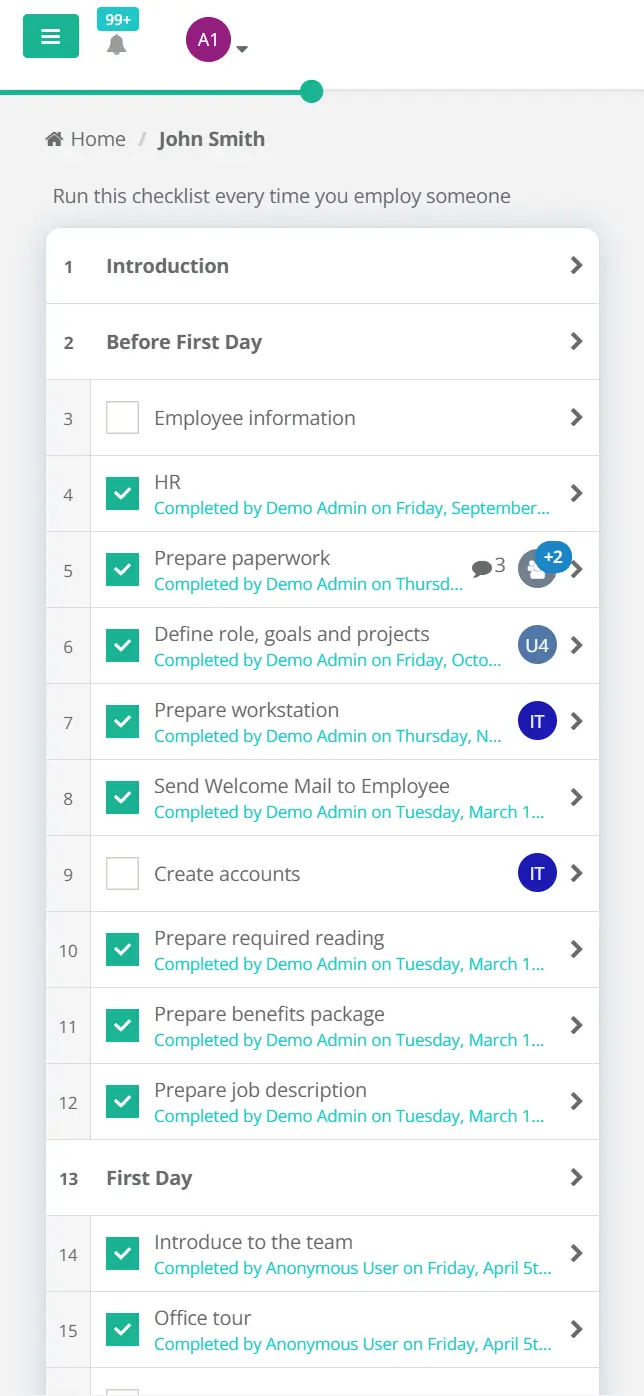
- The Task List: When you open a checklist, you will see the list of tasks.
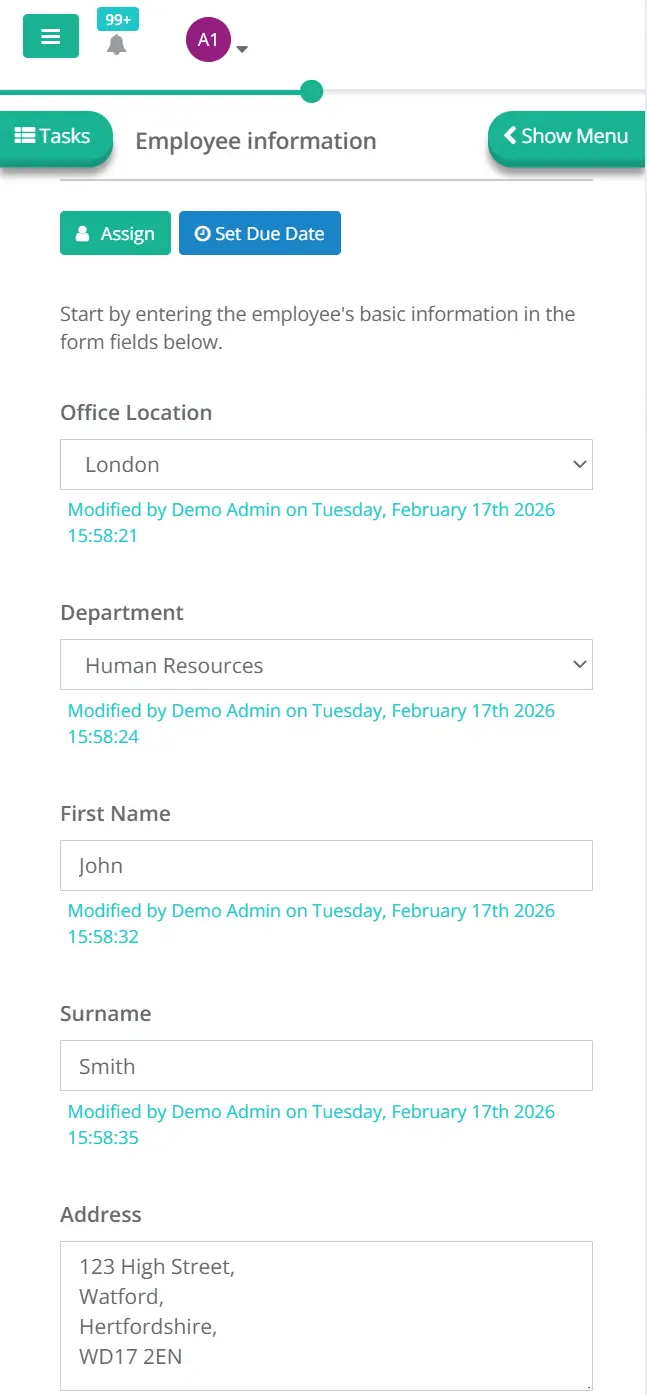
- Expanding a Task: Tap on a task name to expand it. This will reveal the task description, data fields, and controls.
Task List on an iPhone 14
- Closing a Task: Tap the 'Tasks' icon on the top left to return to the main tasks list.
- The Sidebar: The main navigation menu is hidden behind the "hamburger" icon (three horizontal lines) at the top left of your screen.
Task Fields on an iPhone 14
2. Capturing Photos and Files
One of the primary benefits of mobile use is the ability to upload evidence directly from the field.
- Locate a task with a File Upload field.
- Tap the Upload button.
- Your device will prompt you with three options (depending on your OS):
- Photo Library: Select an existing photo.
- Take Photo or Video: This launches your device's camera app directly.
- Choose File: Browse local folders or iCloud/Google Drive.
- Once the photo is taken, it is automatically uploaded and attached to that specific task in the checklist.
CheckFlow automatically handles the optimization of mobile photos, but ensuring a stable 4G/5G or Wi-Fi connection will result in faster upload speeds for high-resolution images.
3. Adding CheckFlow to your Home Screen (PWA)
For the best experience, you can add CheckFlow to your home screen so it functions like a native app (without the browser address bar taking up space).
On iOS (Safari)
- Open Safari and navigate to
app.checkflow.io. - Tap the Share icon (square with an up arrow) at the bottom of the screen.
- Scroll down and tap Add to Home Screen.
- Confirm the name and tap Add.
On Android (Chrome)
- Open Chrome and navigate to
app.checkflow.io. - Tap the three dots menu icon at the top right.
- Tap Add to Home screen.
- Follow the on-screen prompts.
4. Offline Considerations
Currently, CheckFlow requires an active internet connection to save data.
- Data Saving: CheckFlow saves data as soon as a field loses focus or a task is checked.
- Connection Loss: If you lose signal in a remote area (e.g., a basement or rural site), wait until you have a connection before marking tasks as complete to ensure your progress is synced to the cloud.
Related Pages
- Getting Started — the desktop equivalent.
- Complete a Task — the main thing people do on a phone.
- Task Comments & Attachments — photographing evidence on the spot.